As an Amazon Associate, we earn from qualifying purchases. Some links on this site are affiliate links at no extra cost to you. Our recommendations are based on thorough research and editorial judgment.
Why Is My Drone Camera Upside Down? Troubleshooting Tips

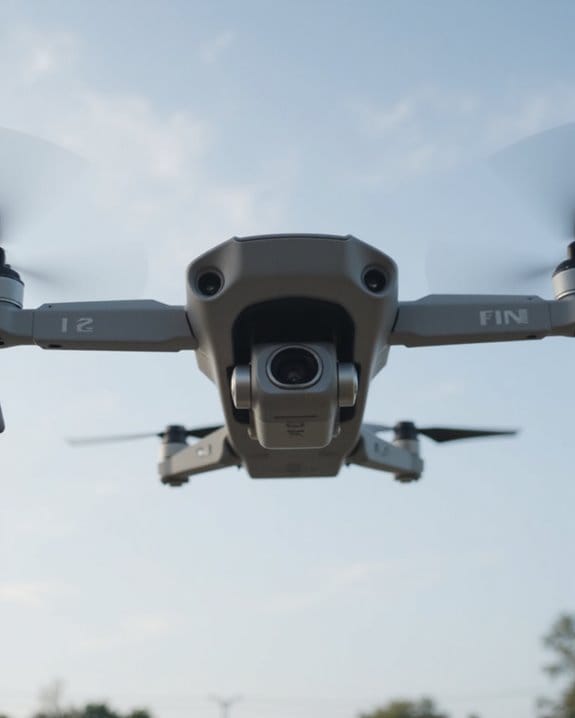
If your drone camera’s upside down, don’t panic—it’s usually a settings glitch, firmware hiccup, or app bug throwing off the image. Head to your device’s Control Center and lock screen orientation, then check your drone app for a 180-degree rotate button or an Image Rotation toggle. Try a quick reset or press your controller’s C1 button. Updating firmware can help prevent this chaos in future flights. For a deeper troubleshooting toolkit, stick around for more expert pointers.
Key Takeaways
- Firmware bugs or recent updates can cause the drone camera feed to appear upside down; check for known issues and available patches.
- Screen or app auto-rotation features on your mobile device may flip the video; lock your device’s orientation before flying.
- Orientation errors in mapping software, such as incorrect omega, phi, or kappa values, can invert the camera view.
- Use the app’s 180-degree rotate button or disable Image Rotation in camera settings to instantly correct an inverted video feed.
- Performing a hard reset or unplugging the camera can resolve temporary glitches that cause upside-down images.
Common Causes of Upside Down Drone Camera Images
You may be interested
A flipped drone camera feed can be perplexing, but understanding why it happens is the first step to getting your footage right side up. If your drone appears upside down when viewing the live feed, several technical culprits could be responsible:
- Firmware bugs, like those seen after DJI’s 2017 update, often catch even seasoned drone enthusiasts off guard.
- Auto screen rotation on devices like iPhones sometimes malfunctions, flipping the display unexpectedly.
- Storm-induced camera disconnections may require a reset to restore proper feed orientation.
- Orientation data errors, such as incorrect omega, phi, or kappa values in mapping software, can invert images.
- App-specific glitches, particularly in the DJI Fly App, may flip your view temporarily.
Check online communities for DJI, Calling All Drone, or Drone Pilots Media network for targeted troubleshooting—especially crucial for service providers for security and members of the drone industry seeking to promote your drone-related products. Additionally, issues with 3-axis gimbals stabilization can sometimes cause unexpected camera orientation problems that require calibration or firmware updates.
Device and App Settings That Affect Camera Orientation
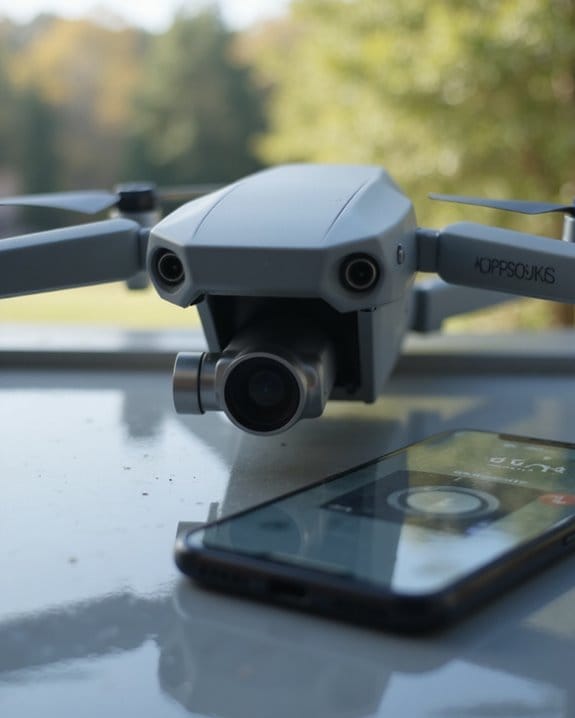
Device and app settings often play a surprising role in flipping your drone camera feed upside down. If your DJI Fly App shows an upside down display, check your device’s screen rotation options first. On iPhones, swipe down to the Control Center and make sure locking orientation is set to landscape mode for stable camera feed viewing. Accidentally released, it’ll rotate the feed with every twist and turn. Some drone apps feature a 180-degree rotate button, instantly correcting inverted video. Within Camera Settings, look for the Image Rotation toggle—disabling it resolves orientation issues for many users.
Quick Recommendations:
- Lock orientation before flight.
- Use the app’s rotate button if available.
- Disable Image Rotation in Camera Settings.
These steps reliably prevent mid-flight surprises—no need to stand on your head! Additionally, apps like FlightHub offer intelligent storage management to help handle your captured footage seamlessly while ensuring proper camera control.
Firmware Bugs and Software Glitches: What to Watch For
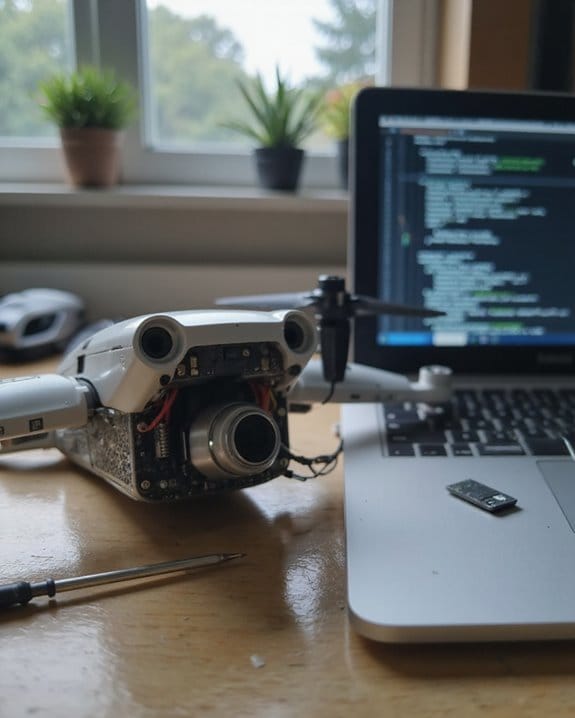
Ever wondered why your drone’s camera suddenly flips the image upside down, even when you’ve triple-checked your device and app settings? The culprit is often firmware bugs or software glitches, especially after DJI updates. These issues can cause your drone camera to display an upside down image, disrupt flight controls, or make the DJI Fly App itself open in reverse. Here’s what you should watch for:
- Firmware Bugs: Recent DJI firmware updates, like the notorious December 2017 patch, are known to trigger camera inversion—sometimes only when the camera faces down or forward.
- Software Glitches: Odd behaviors such as the app correcting itself after several minutes, or the C1 button unpredictably fixing the view.
- Firmware Downgrading: Many users find relief by reverting updates while awaiting official software patches.
Stay alert for DJI’s release notes! It’s also important to consider the drone’s stabilization technology, as firmware glitches might interfere with the camera’s ability to maintain a steady and correctly oriented image during flight.
Step-by-Step Solutions to Fix Inverted Camera Views
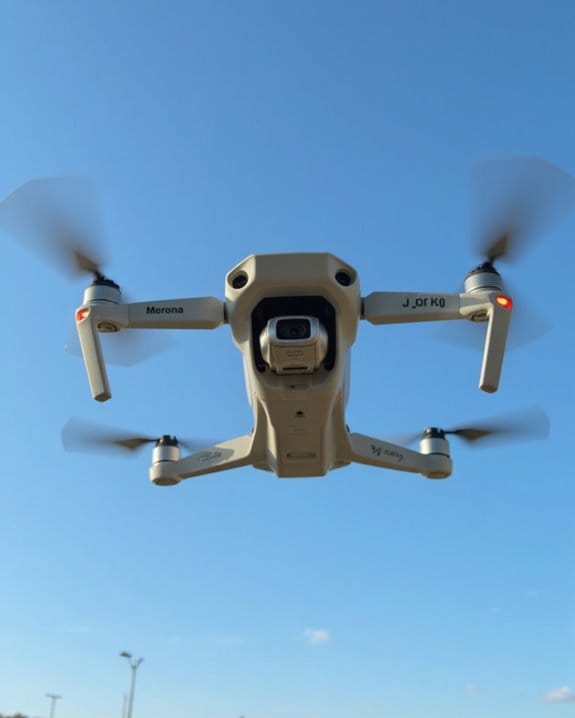
When your drone’s camera decides to take a flip—literally—it’s time for a structured approach. First, if you’re using the DJI Fly App with an iPhone, swipe diagonally from the top-right to access the Control Center, then lock your screen orientation in landscape mode to prevent an inverted camera feed. On some drone models, tapping the 180-degree rotation button in the app instantly corrects the drone camera’s view. Next, try pressing the C1 button—results vary, but it’s worth a shot.
For a more permanent fix, access the app’s home screen, tap the hexagon on the camera thumbnail, and disable Image Rotation in Camera Settings. Still upside down? Perform a hard reset by unplugging the camera or following your drone’s reset procedure.
Preventing Future Camera Orientation Problems
Keep your drone’s camera right-side up by prioritizing a few essential habits before every flight. With a million unique drone enthusiasts sharing their insights, here’s how you can prevent future orientation problems:
Best Practices to Prevent Camera Issues
- Update Firmware Regularly: Manufacturers, like DJI, release patches to fix bugs. These updates are required to enable core functionality and security.
- Lock Screen Orientation: Always set your device to landscape and verify with other apps—this step delivers enhanced functionality and reduces surprises mid-flight.
- Use Essential App Features: Consistently use the 180-degree rotate button and disable auto-rotation in the camera settings.
- Configure and Test Hardware: Periodically test device rotation to catch hardware issues early.
Frequently Asked Questions
How Do You Fix an Upside Down Security Camera?
If your security camera’s image is upside down, open the camera’s app, head to Settings from the thumbnail, then find Image Rotation. Disable the green toggle. If it’s still flipped, try resetting the camera.
Why Is My Drone Flipping?
Did you know over 60% of drone flips are caused by calibration errors or damaged propellers? If your drone’s flipping, check for bent props, calibrate the gyroscope, and make sure you’ve updated your firmware to prevent instability.
Why Is My Camera Showing Me Upside Down?
If your camera’s showing you upside down, you’re likely dealing with a software bug or incorrect orientation setting. Check your device’s rotation lock and app settings, and try restarting the camera or app for a quick fix.
How Do I Rotate My Yi Camera?
Imagine you’re checking your baby monitor and the image is upside down. Just open the Yi app, tap the hexagon on your camera’s thumbnail, then disable the Image Rotation toggle. Don’t forget to update your app!